Your references, prompts and styles, ready in every run.
Save the pictures, prompts and styles you use again and again. Attach a picture to any prompt by writing its @slug, reuse prompts with blanks to fill, and turn one photo into new angles or styles.
Flowvdo uses your own Google Flow account and credits, and your own AI provider key. Not affiliated with Google.
Three kinds of things worth keeping
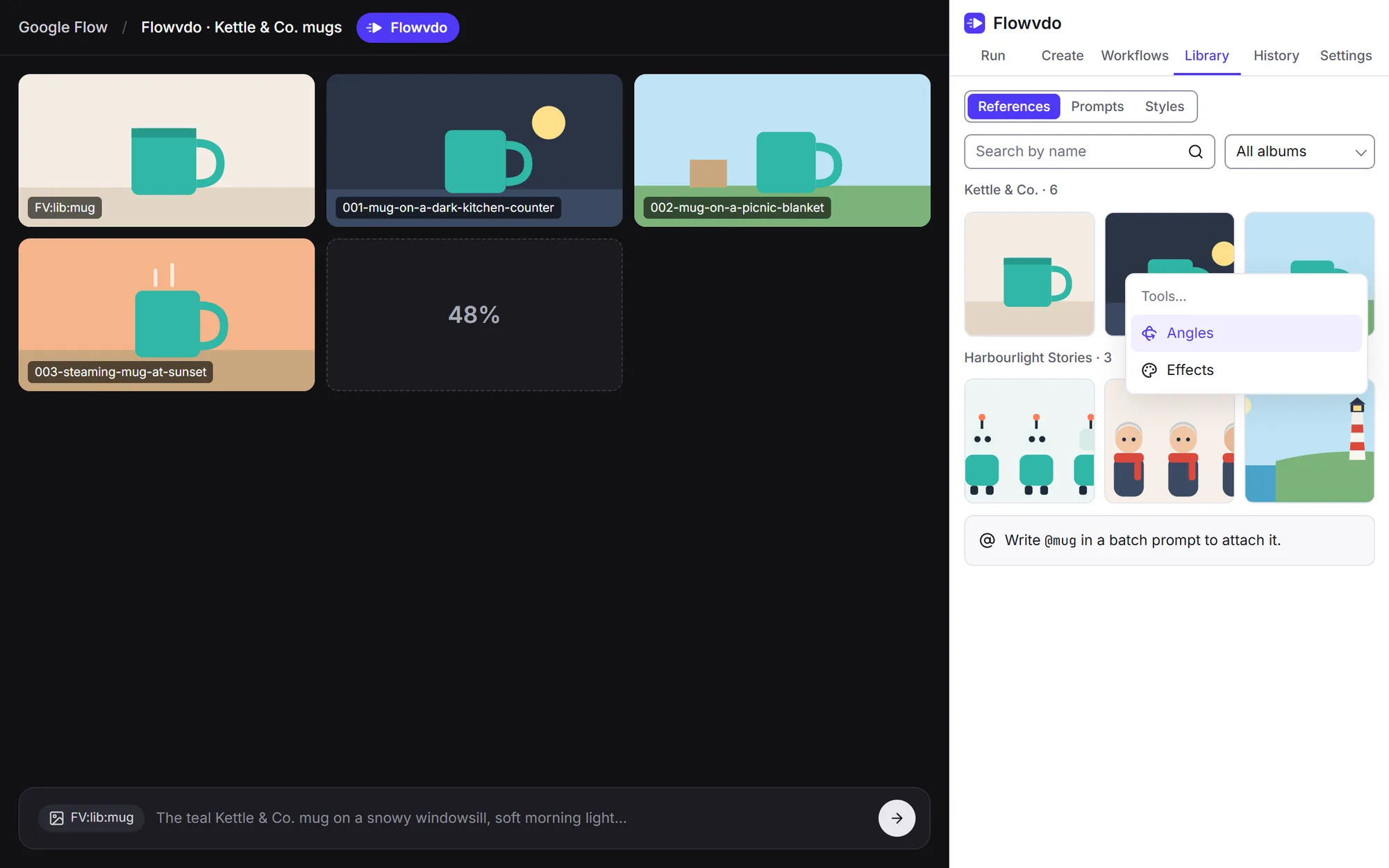
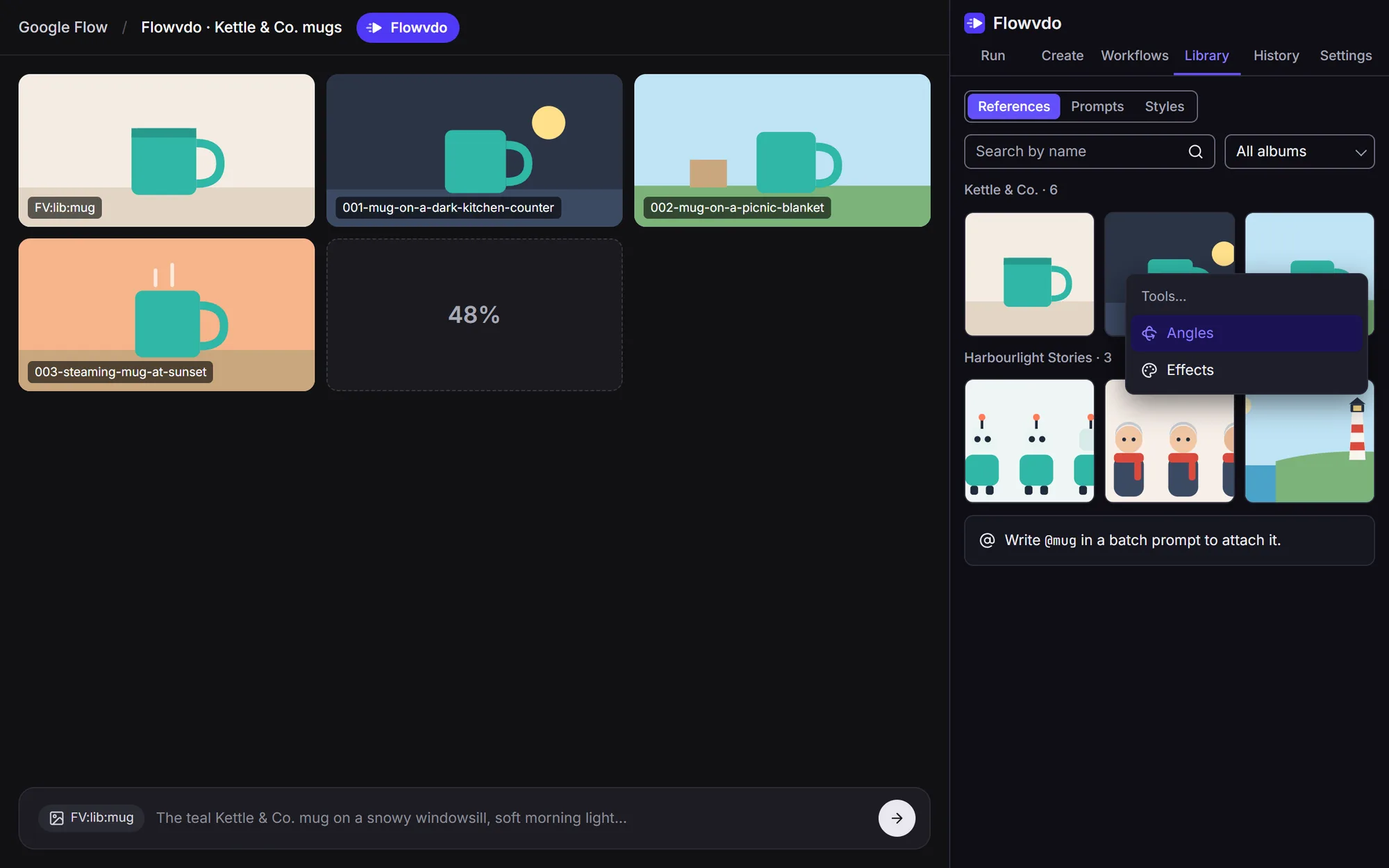
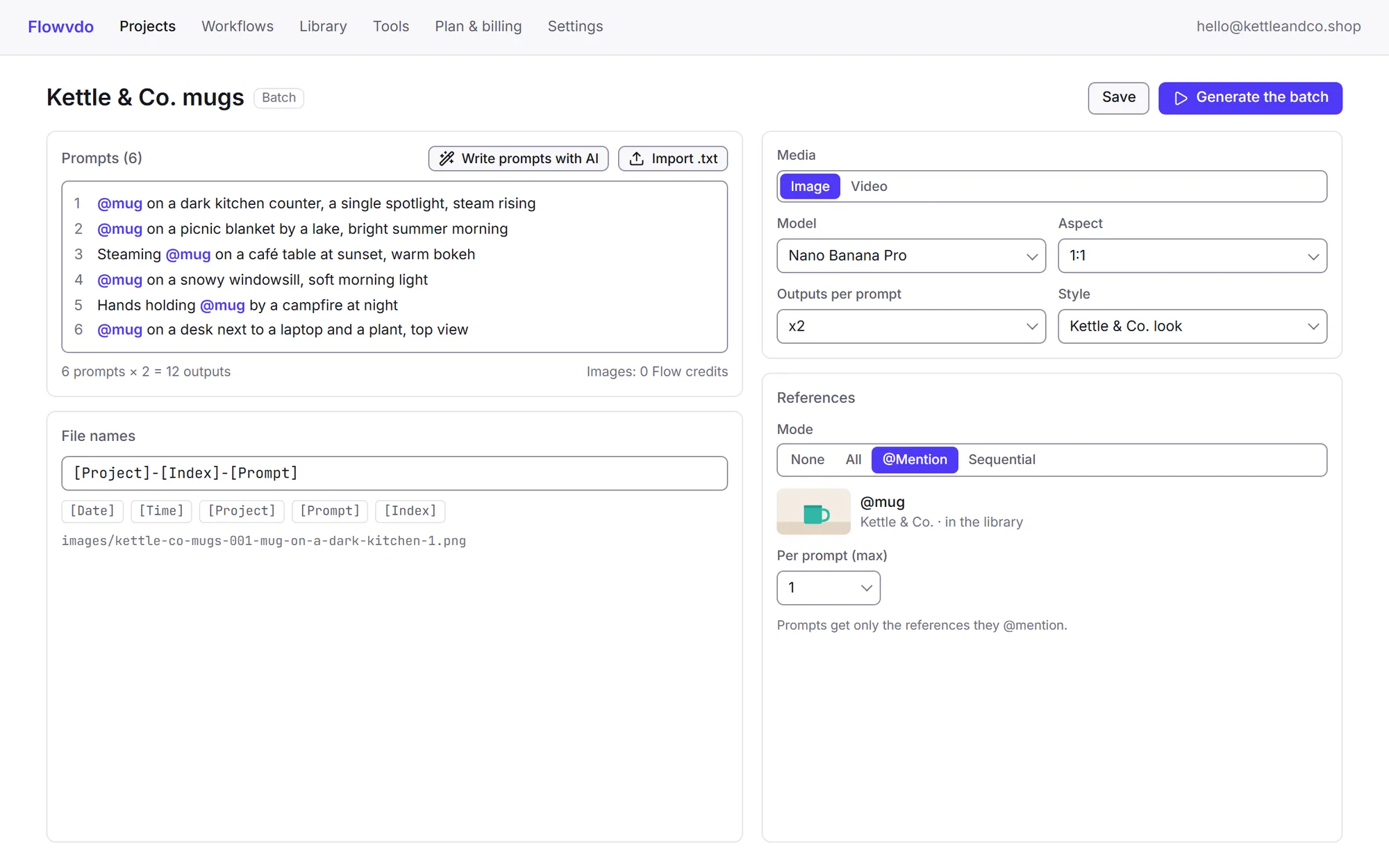
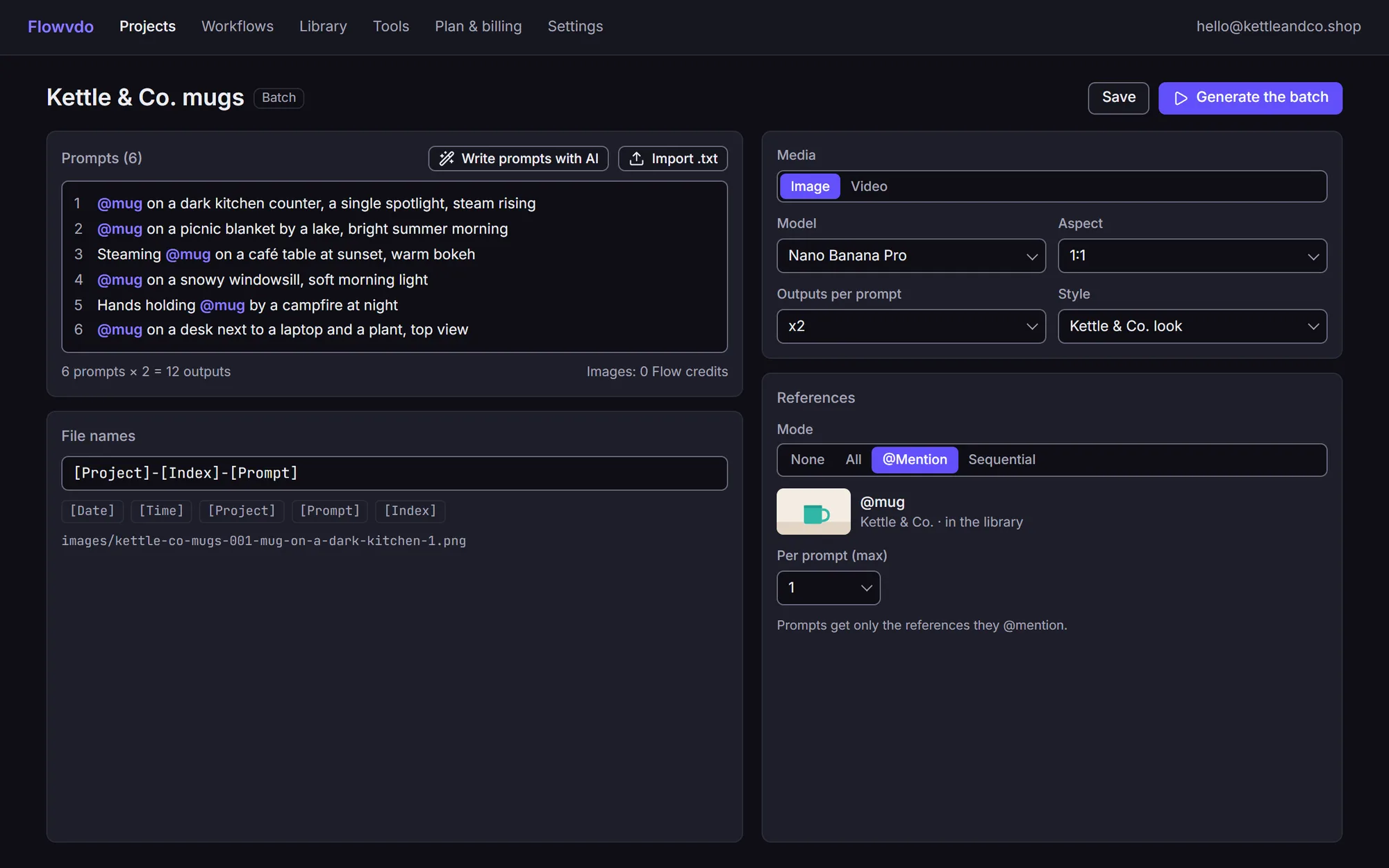
Pictures with an @slug
Add PNG, JPEG or WebP pictures (up to 10 MB each), give each an @slug and an album. They stay in your browser. When a prompt needs one, Flowvdo uploads it into that Flow project for you.
- Right-click any picture on the web: Add image to Flowvdo library or Describe image as a prompt
- Write
@mugin a prompt to attach that picture - Albums keep products, characters and places apart
- Browse and edit names and albums on the web too
Reusable words
Save prompts with {variables} and fill in the blanks when you use them. Save styles, such as “soft 3D storybook, warm light”, and add one to the end of every prompt in a batch.
- Use a saved prompt in one click
- One style for a whole batch
- The same library in the side panel and the web app
Angles and Effects from one picture
Pick a picture from your library and a tool. Flowvdo prepares one prompt per angle or effect, with your picture attached, and runs it as a batch: it saves, retries and reruns like any batch.
Angles
Front, Three-quarter, Side, Back, Top and Low angle views of the same subject.
Effects
Cinematic, Anime, Watercolour, Claymation, Pixel art, Film noir, Vintage photo and Pencil sketch, or your own style.
Library, in detail
Reference library
Reference pictures with @slugs and albums, kept in your browser until a prompt needs them.
@mentions
Write @slug in a prompt to attach that picture from your library.
Saved prompts
Reusable prompts with {variables} you fill in when you use them.
Styles
A saved style is added to the end of every prompt in a batch.
Angles and Effects
Turn one picture into front, side, back and other angles, or restyle it as watercolour, claymation and more.
Image → Prompt
Right-click any picture on the web and choose Describe image as a prompt; your AI provider writes it, ready to add to a batch.
Add image to library
Right-click any picture on the web to save a copy to your Flowvdo library.
Reference modes
Give prompts no references, all of them, the ones they @mention, or each in turn (up to 5 per prompt).
The library and Tools is in every plan. The Free plan gives you 1 active project, 2 runs a month, up to 4 scenes and 30 s per video; Creator and Storyteller raise those limits. Your Google Flow credits stay your own on every plan.
Compare plansQuestions, answered
Are my library pictures uploaded to Flowvdo?
What if I use another computer?
Do Tools cost credits?
Make your first story video
The Free plan makes one short video from start to finish, so you can see the whole pipeline before you pay.
Flowvdo uses your own Google Flow account and credits, and your own AI provider key. Not affiliated with Google.